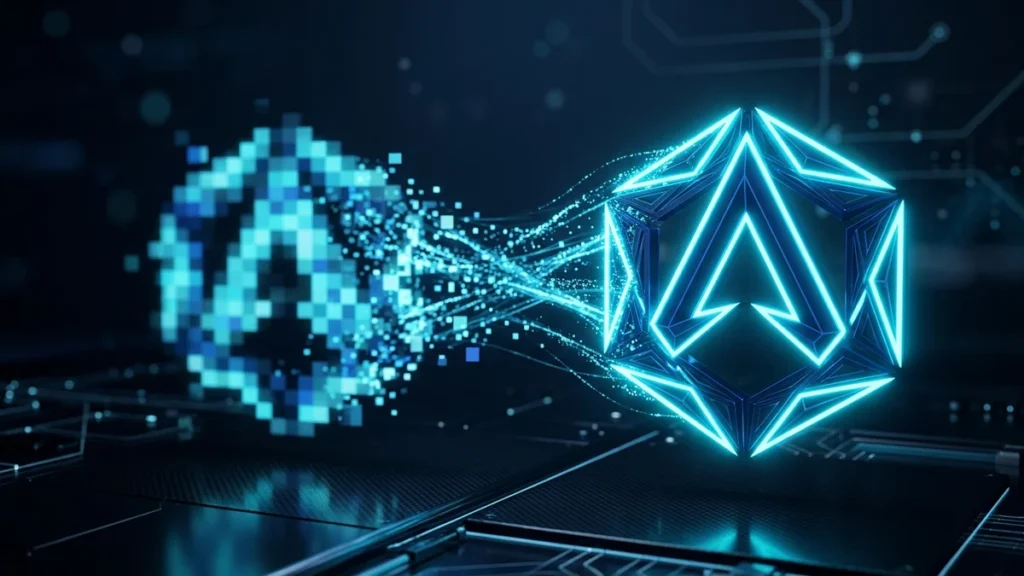
One of the most common headaches for business owners and junior designers is dealing with a blurry logo. You receive a beautifully designed logo in PNG format, but the moment you try to blow it up for a banner or a large website header, the edges become jagged and pixelated.
The Problem with PNGs (Raster Graphics)
PNGs and JPGs are raster images. This means they are constructed from a fixed grid of tiny colored squares called pixels. When you scale a raster image up, the computer is forced to stretch those pixels, creating that blocky, blurry effect we all hate.
The Solution: Scalable Vector Graphics (SVG)
Unlike PNGs, SVGs are vector graphics. Instead of using a grid of pixels, an SVG uses mathematical formulas (points, lines, and curves) to draw the image. Because it relies on math rather than a fixed grid, an SVG can be scaled to the size of a billboard or shrunk to a tiny favicon without losing a single drop of quality or sharpness.
How to Convert Your PNG to SVG
To convert your pixelated logo into a crisp vector, you need to use an image tracing algorithm. While professional tools like Adobe Illustrator offer this, they are expensive and complex. Instead, you can use a client-side JPG/PNG to SVG Converter directly in your browser. Simply upload your PNG, and the tool will automatically trace the edges and generate the math required to produce an infinitely scalable SVG file in seconds.
FAQ
Will converting a photograph to SVG make it look better?
No. Vectorizing works best for simple, flat graphics like logos, icons, and typography. Converting a complex photograph to SVG will result in a massive file size and a ‘painted’ or posterized look.
Does converting PNG to SVG reduce file size?
For flat logos and icons, yes! An SVG is basically a text file containing math, so it is often much smaller than a high-resolution PNG, making your website load faster.
Can I edit the SVG after converting it?
Absolutely. Once your image is converted to SVG, you can open it in any vector editing software (like Figma or Illustrator) or even a code editor to change the colors or adjust the curves.