
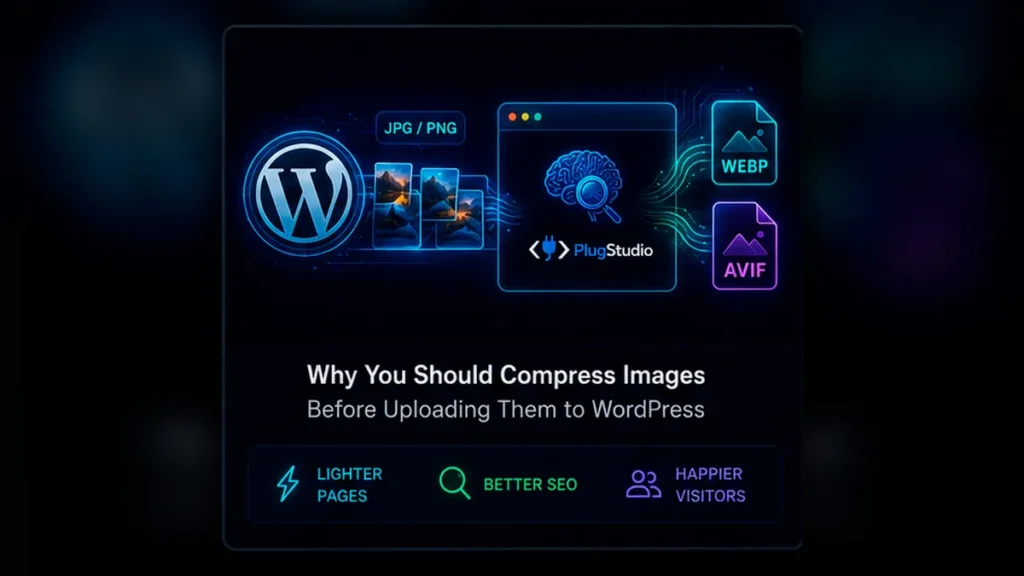
Uploading a 6 MB product photo and expecting WordPress to solve everything afterward means you’re storing unnecessarily large originals, creating additional thumbnail versions and potentially relying on another server-side optimization process.
A simpler workflow is to prepare web-ready assets first.
Why image size matters
Images are frequently among the largest resources on a web page.
Google specifically recommends optimizing image speed and quality because images can significantly increase total page weight.
They can also be the element responsible for Largest Contentful Paint.
Compressing an oversized hero image or converting it to WebP or AVIF can shorten its download time—although image compression alone does not guarantee a better LCP score if another part of the rendering process is the real bottleneck.
Ese matiz es excelente para E-E-A-T porque evita el típico texto SEO:
“Convert to WebP and your Core Web Vitals will instantly improve.”
Eso no siempre es verdad.
A practical WordPress image workflow
Before uploading images:
- Resize them to approximately the dimensions the website actually needs.
- Compress them at an appropriate quality level.
- Convert photographic assets to WebP or AVIF where appropriate.
- Give each image a descriptive filename.
- Upload the optimized file to WordPress.
- Add meaningful alt text based on what the image actually represents.
Google explicitly recommends descriptive filenames and contextual alt text for image understanding.
Optimize an entire WooCommerce catalog at once
This becomes especially useful for ecommerce.
If you receive 70 new product photos from a client, processing them one by one is inefficient.
PlugStudio accepts multiple images, processes the batch, displays original and optimized sizes and can package the resulting files into a ZIP archive.
You can then upload the optimized versions directly into WordPress.
CTA
Preparing a new WordPress site or WooCommerce catalog? Optimize the images before filling your Media Library with oversized originals.