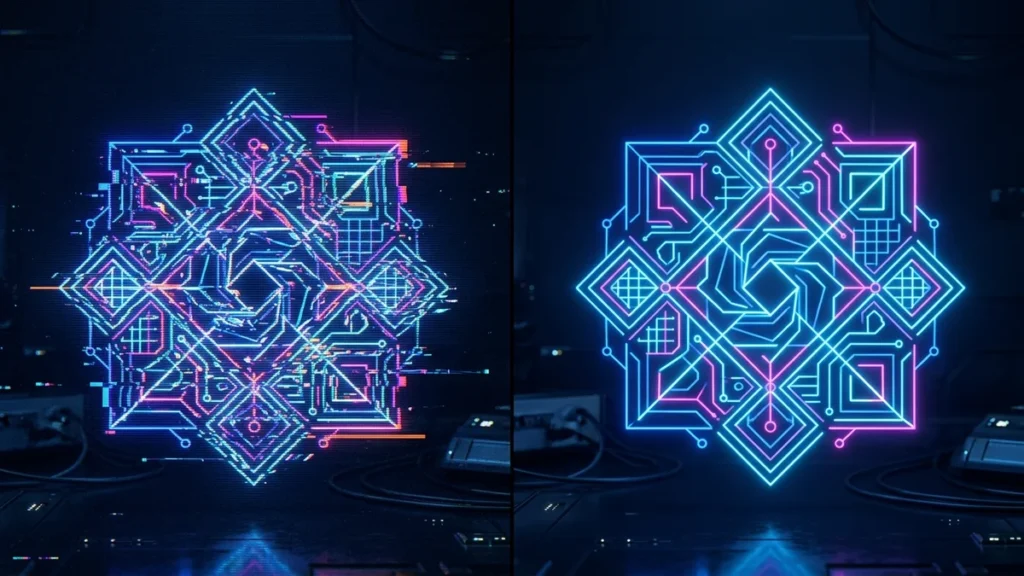
You designed a stunning graphic in Figma or Adobe Illustrator. It has beautiful gradients, drop shadows, and custom typography. You export it as an SVG, send it to your developer or client, and they complain that the fonts are wrong, the shadows are missing, and the layout is completely broken. What happened?
The Problem with SVG Rendering Engines
An SVG is not a static picture; it is a set of coded instructions. When you open an SVG, the software (whether it’s Chrome, Safari, Illustrator, or Inkscape) has to read the code and «draw» the image in real-time using its own rendering engine.
The problem is that different engines interpret SVG code differently. If your SVG relies on a font installed on your computer, a client who doesn’t have that font will see a generic fallback font. Complex CSS filters, clipping masks, and drop shadows are also notorious for breaking across different platforms.
The Solution: Rasterize to Freeze the Design
If you absolutely need a complex design to look 100% identical on every single device, browser, and software program in the world, you cannot rely on SVG. You must rasterize the graphic.
Rasterizing means converting the mathematical code of the SVG into a fixed grid of pixels (a PNG). By using a reliable SVG converter, you take a «snapshot» of exactly how the vector looks on your screen, locking in the fonts, shadows, and gradients permanently so they can never be misinterpreted by another program.
FAQ
How can I fix missing fonts in an SVG without converting to PNG?
Before exporting the SVG from your design software, you must ‘Outline’ or ‘Convert to Paths’ all text. This changes the text from editable fonts into fixed vector shapes.
Why do SVG drop shadows disappear in WordPress?
Many WordPress themes or security plugins strip out inline CSS and `
Is there a hybrid approach?
Yes. Keep the original SVG for your own design files, but export a high-resolution PNG for the final delivery to clients or for uploading to the web to guarantee consistency.